 ).
(You can also right-click (or control-click) the component
and choose Show Properties from the popup menu. Also,
manipulating a component via the Poke tool
(
).
(You can also right-click (or control-click) the component
and choose Show Properties from the popup menu. Also,
manipulating a component via the Poke tool
( ) or the Text tool
(
) or the Text tool
( ) will display that component's
properties.)
) will display that component's
properties.)Many components have properties, which are properties for configuring how the component behaves or appears. The property table is for viewing and displaying a component's property values.
To select which component's properties you wish to view, click
the component using the Edit tool
().
(You can also right-click (or control-click) the component
and choose Show Properties from the popup menu. Also,
manipulating a component via the Poke tool
() or the Text tool
() will display that component's
properties.)
The below screen shot demonstrates what things look like after selecting the upper input of our XOR circuit and scrolling down to view the Label Font property.
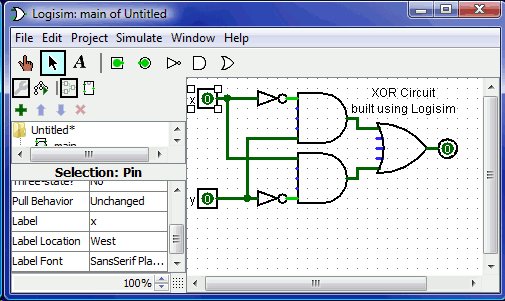
To modify a property value, click on the value. The interface for modifying the property will depend on which property you are changing; in the case of the Label Font property, a dialog box will appear for selecting the new font; but some properties (like Label) will allow you to edit the value as a text field, while others (like Label Location) will display a drop-down menu from which to select the value.
Each component type has a different set of properties; to learn what they mean, go to the relevant documentation in the Library Reference.
If you've selected multiple components using the Edit tool, then the property table will display properties that are shared among all the selected components (excluding any wires). If the selected components don't all have the same value for the property, then the displayed value will be blank. You can change the value for all selected components' property at once by using the property table.
Next: Tool properties.