 Wiring Tool Wiring Tool
Found in Mouse Tools
The Wiring Tool is for creating and rearranging wires. It behaves similarly
to the  Edit Tool,
except it only adds and modifies wires. It does not do selection, and can't add new components.
Edit Tool,
except it only adds and modifies wires. It does not do selection, and can't add new components.
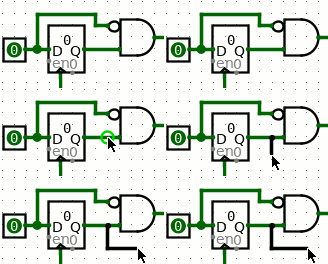 Clicking and dragging anywhere on the canvas will create a new wire or modify an
existing wire segment. Wires in Logisim are made of straight segments, are
either horizontal or vertical, never diagonal. When drawing wires, Wiring Tool
creates an "L" shaped sequence of wire segments if you drag diagonally. You can
control the orientation of the "L" with mouse movement: if the drag starts
horizontally, the first segement will be horizontal, for example.
Clicking and dragging anywhere on the canvas will create a new wire or modify an
existing wire segment. Wires in Logisim are made of straight segments, are
either horizontal or vertical, never diagonal. When drawing wires, Wiring Tool
creates an "L" shaped sequence of wire segments if you drag diagonally. You can
control the orientation of the "L" with mouse movement: if the drag starts
horizontally, the first segement will be horizontal, for example.
Tip: Use the keyboard to make zig-zag wire paths.
- Press Space while dragging to bend a wire's path. You can do this repeatedly to make a complicated zig-zag path for the wire by pressing Space at each place the wire should turn a corner.
- Press Backspace while dragging to straighten a wire's path. Each Backspace will remove a corner point, resulting in fewer turns and a more direct path.
- Press Escape to cancel wire drawing.
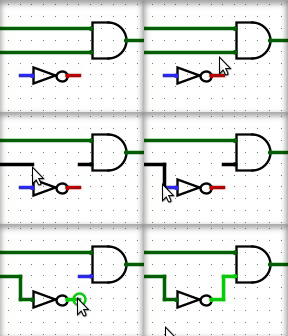 Click and drag the end of a wire to shorten or extend it, or click and drag
the middle of a wire segment and drag along the wire to open a gap and reroute a
wire.
Click and drag the end of a wire to shorten or extend it, or click and drag
the middle of a wire segment and drag along the wire to open a gap and reroute a
wire.
Click and drag on a blank area of the canvas to start a completely new wire.
Hover over the wiring point of a component to see a description of that input or output.